

Tags and folders
Edalitics has introduced a new feature that allows you to add a new tag, according to your needs.
To add a new tag, follow the next steps:
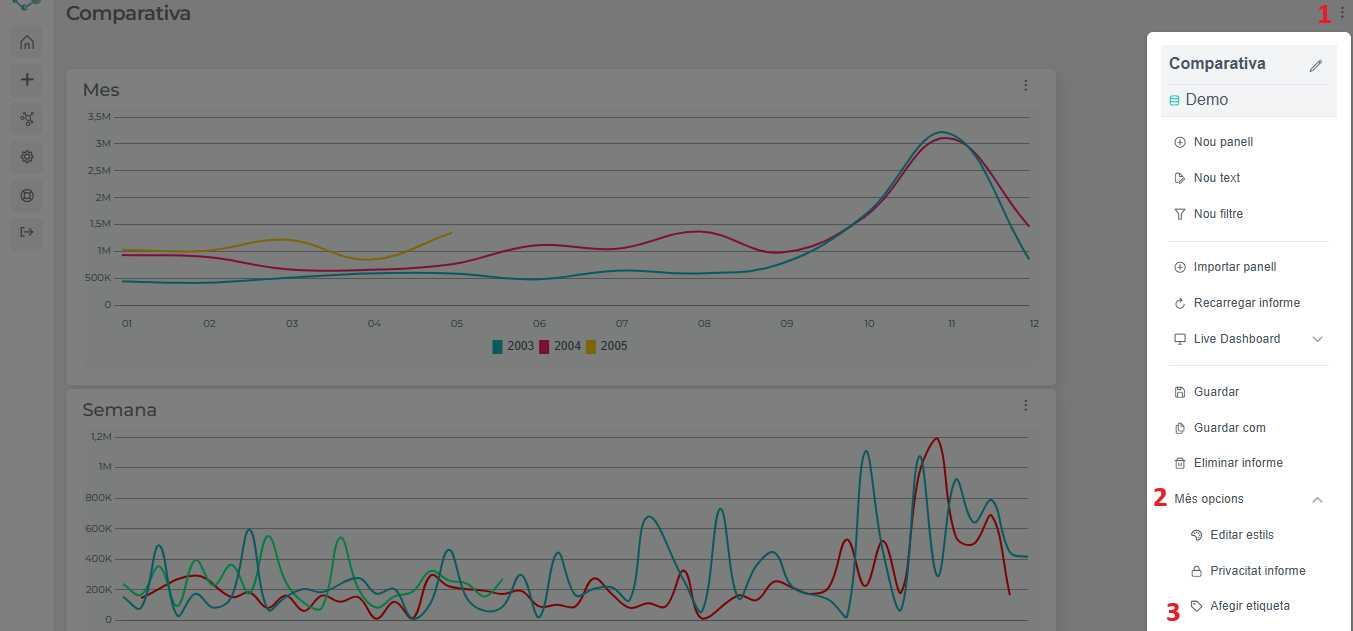
- Firstly, go to the drop-down menu at the top right (1). Secondly, dropdown “More options” (2). And thirdly, click on “Add tag” (3).
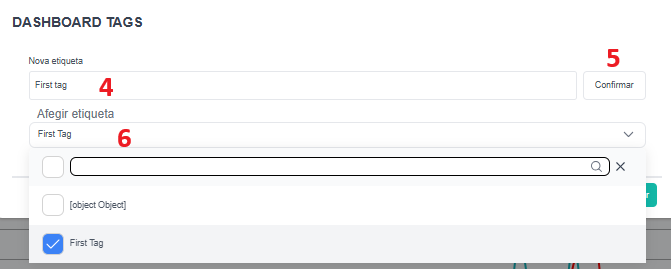
- It will make you arrive to this box, where you can name your tag (4). After named it, “Confirm” (5) and the you will be able to add your tag (6). After this, click on “Confirm” (the blue one)
- Finally, if it was all correct, you will find your tag in the main screen.

Video tutorial
Section titled “Video tutorial”Folders
Section titled “Folders”In Edalitics, folders allow you to automatically organize reports according to their tags.
Each folder groups all reports that share the same tag. If a report has multiple tags assigned, it will appear simultaneously in all corresponding folders. Below the name of each folder, the number of reports it contains is shown.
Show or hide folders
Section titled “Show or hide folders”- To view reports grouped in folders, select “All Grouped” tag.
- If you prefer to see all reports without grouping, select the “All” tag.
- You can also select any other tag to display only the reports associated with that tag, without a folder structure.
When you open a folder, only the reports belonging to that category will be displayed.