
Alerts and emails
Edalitics allows you to configure a mail server through which it is possible to send alerts generated by the KPIs and reports. To configure the mail we access the corresponding tab of the management menu:
In the editing screen, we choose SMTP or Gmail OAuth2. In case of SMTP, we introduce the name of the server, port, user and password. With this we have the server ready to send emails. In case of Gmail OAuth2, we introduce the client ID, the client secret and the token.
On this screen, we can also monitor the alerts and mailings that we have programmed. If you want to receive all the alerts in a specific moment, you can just click on the button “Send all scheduled emails” on the upper right corner.
Video tutorial
Section titled “Video tutorial”Sending alerts
Section titled “Sending alerts”Edalitics allows defining alerts on KPIs. But beyond painting colors on the screen, edalitics allows you to define that these alerts will be checked periodically and sent by email if the alert condition is satisfied.
To generate an alert by email, we access the “Edit chart options” menu of the KPI panel configuration:
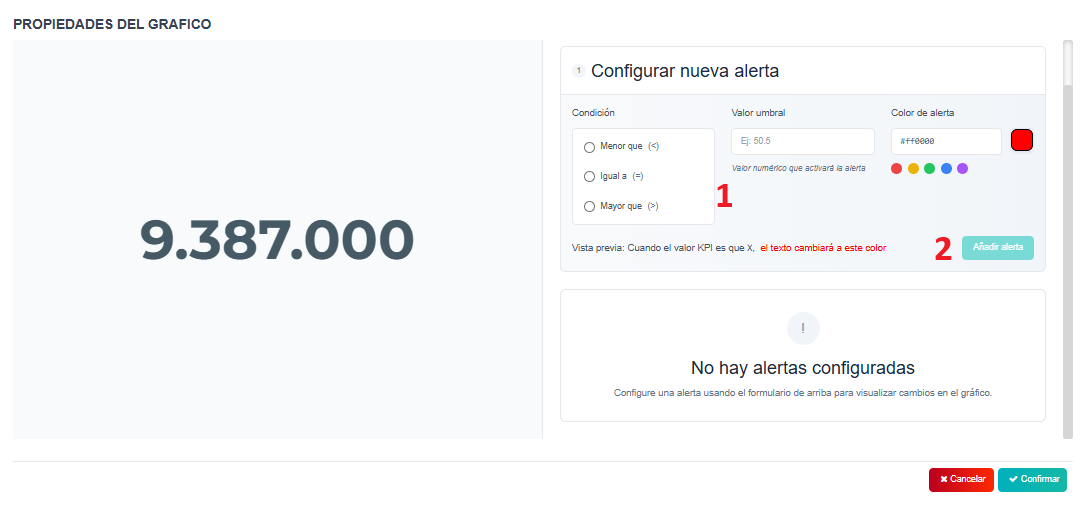
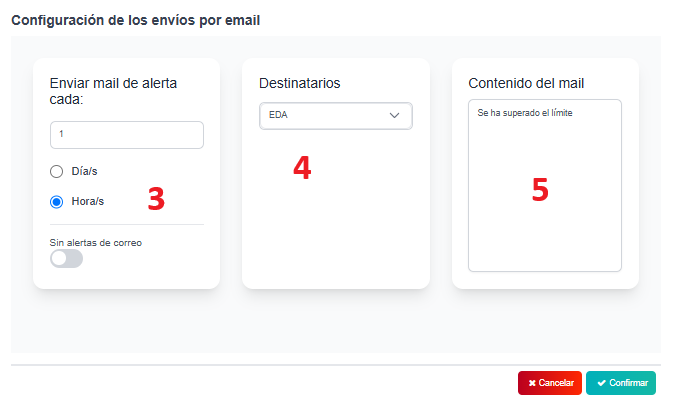
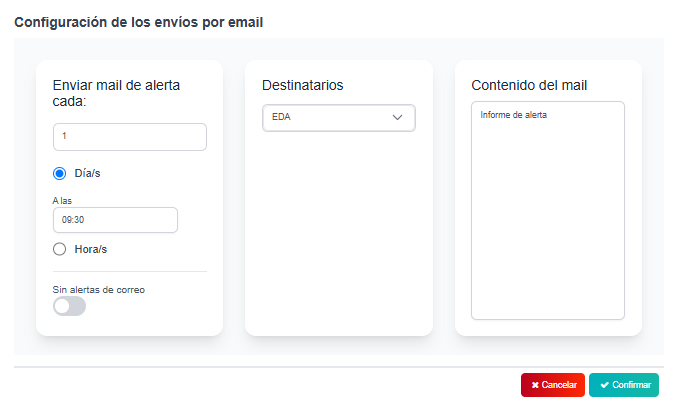
After configuring the conditions that determine the alert, the color code to be displayed (1) and add the alert to configured alerts (2), it can be determined that the alert is sent by mail with the periodicity of every X days or hours (3), to whom the mail will be sent (4) (An edalitics user) and what text will be sent in the mail (5).
Video tutorial
Section titled “Video tutorial”Sending reports
Section titled “Sending reports”(Functionality in beta phase at the moment)
To configure the sending of a report by mail, we access the top right sidebar:
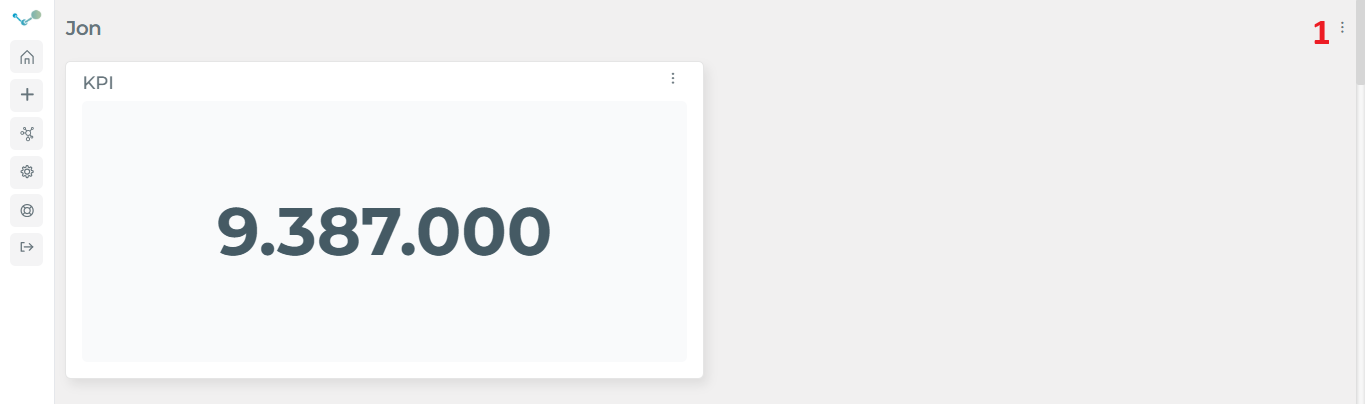
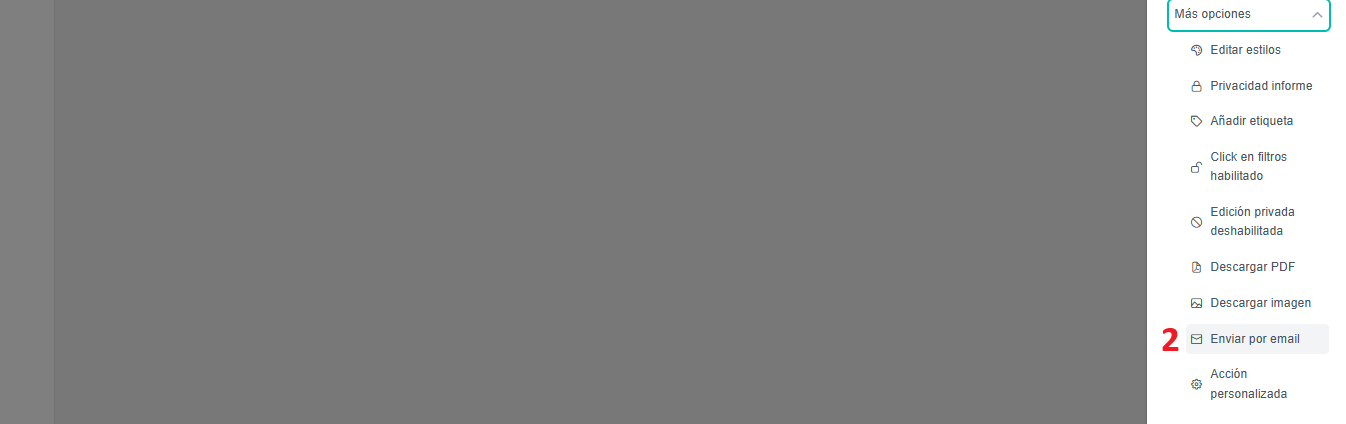
Select the “Send by email” option. The configuration is identical to that of the alert configuration: we choose the desired sending period, the users to whom we want to send the mail and the body of the message.