
Syncing dev / prod environments
Edalitics is based on a JSON data model that defines tables and their complexities (columns, relations, permits, types, etc…) to execute and show the reports queried by the user. This data model is extracted from the users database, which is the reference for the correct user experience of EDA.
These next few steps will explain how to import properly a data model to edalitics and use properly and succesfully for the users purposes.
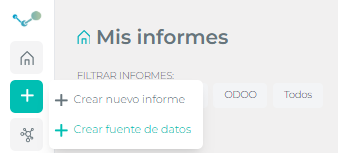
- Create a data model at your development environment. This is essential, because all the user´s data will be linked to the model´s Id. A new model can be created at the Create data source option; here the user can connect to it´s database, therefore create a new model.
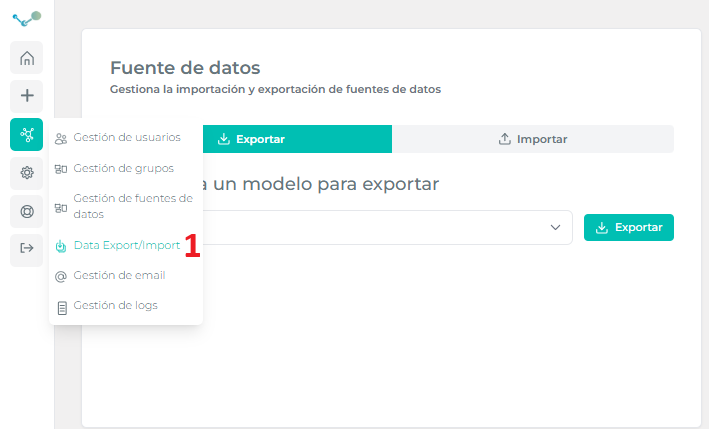
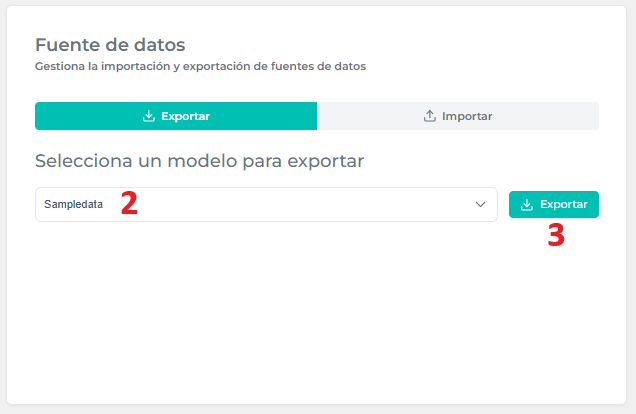
- To export the data model, use the edalitics / Data Export/Import tag and the option “Export Model”. The dropdown menu will allow to choose the desired model to export. Once the button is pressed and the location for the download is choosed, a JSON file will be downloaded, which is the data model.
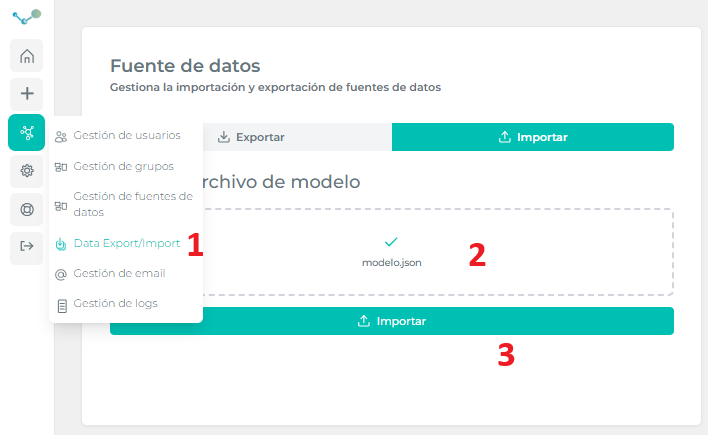
- Once the data model is ready for the production environment, at the same edalitics / Data Export/Import page we can upload this model, choosing the “Import Model” button. We will have to choose the correct file at the pop up window. The data model may take some time to load, depending on the size and complexity of the model.
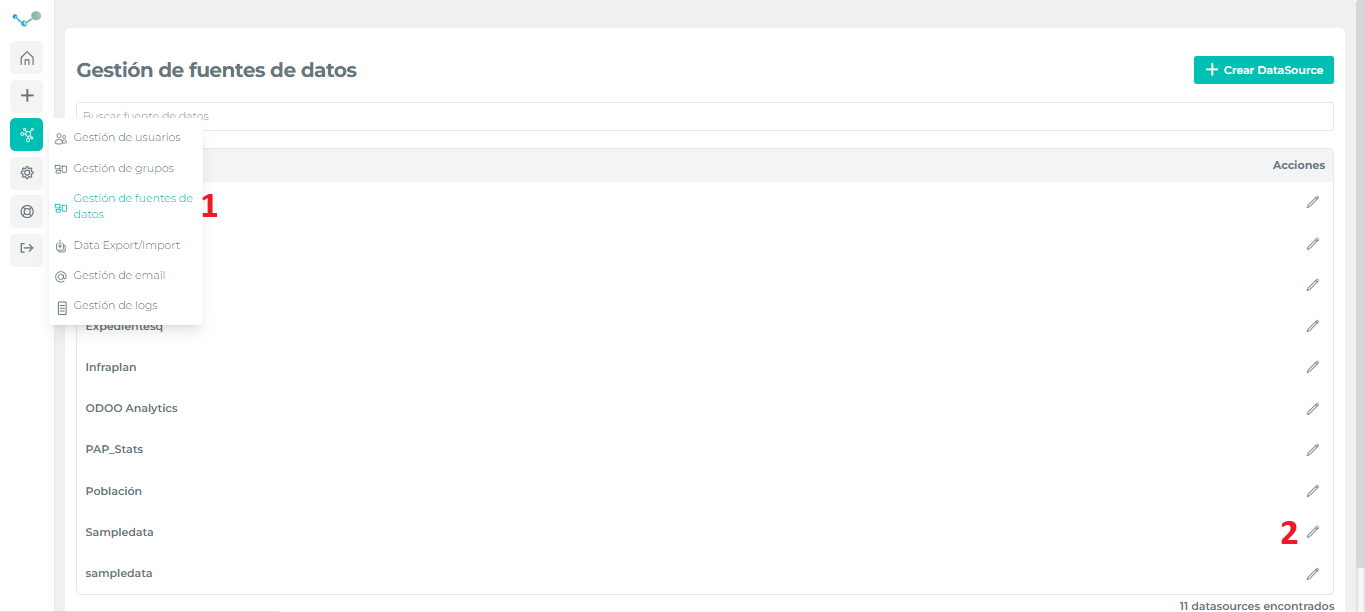
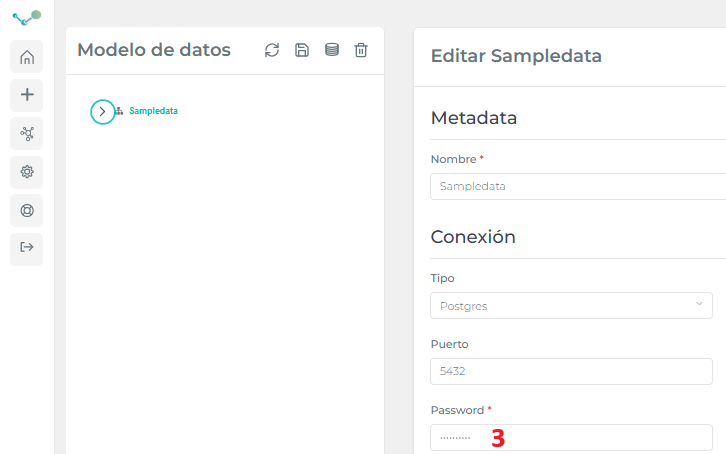
- When exporting the data model, edalitics encrypts the password at the data model. That means the password has to be given to the data model after importing for production environment. Please mind this step has to be done every time we export and import a data model.
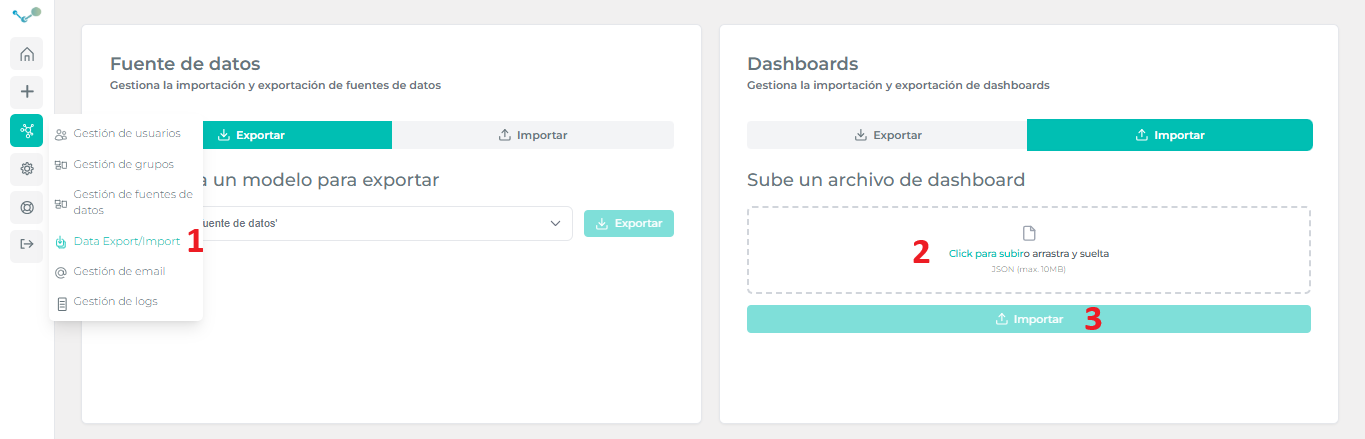
- Once these steps are implemented, we can export dashboards related to the data model given, at the same tag edalitics / Data Export/Import.
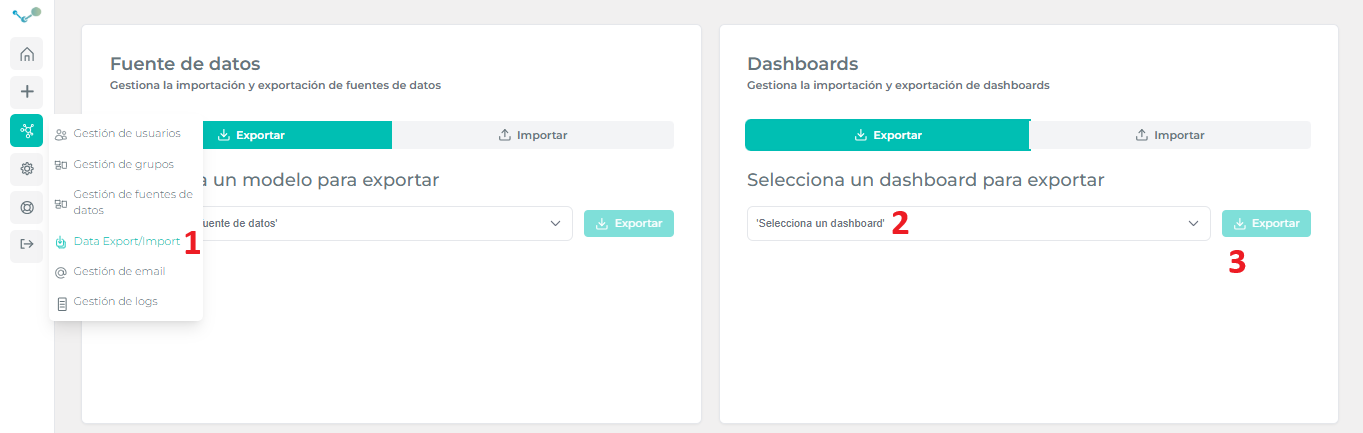
- These dashboards can be also imported to production, since the data model is deployed and synchronized.