
Edit style
Edalitics has added a new “Edit styles” section, which will allow you to modify the text type, size, and colors of both the text and the background, among other things. This section allows you to edit all the dashboard components at the same time, and if you add another panel/chart, it will be with the same style. You will be able to see the changes on your right in a preview.
How to edit styles? Follow the next steps:
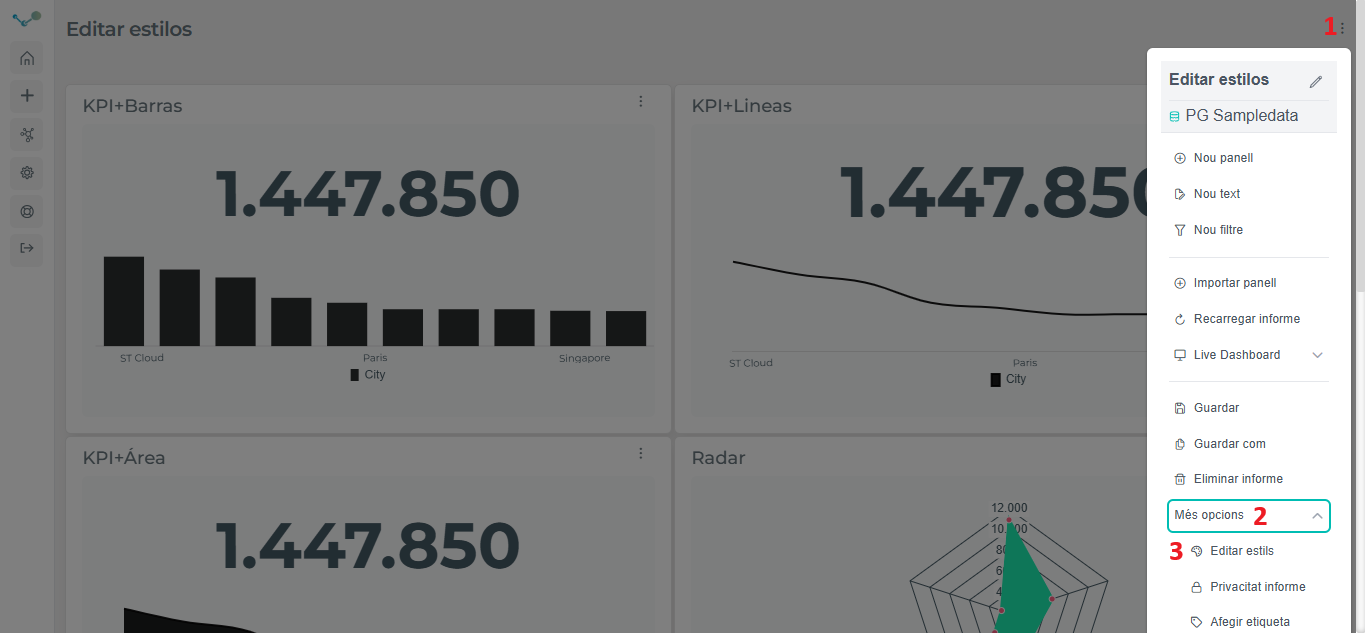
- Open the dashboard you want to edit style or create one. Once inside the dashboard, open the menu located at the top right (1), then expand “More options” (2), and click on “Edit styles” (3).
- After clicking on “Edit styles”, you will find the box where you can modify the dashboard style.
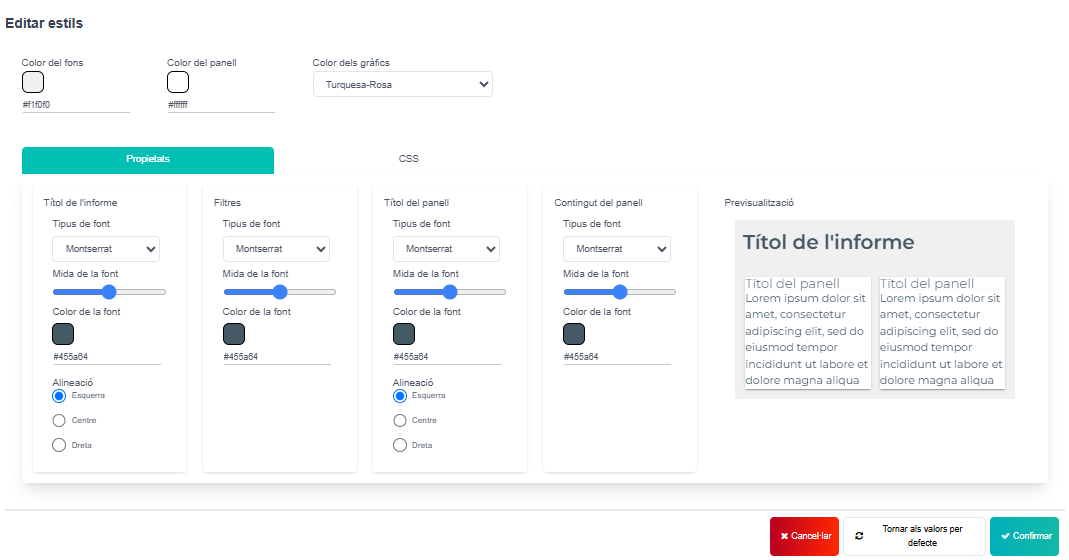
- Now you can modify the dashboard style to your liking. For instance:
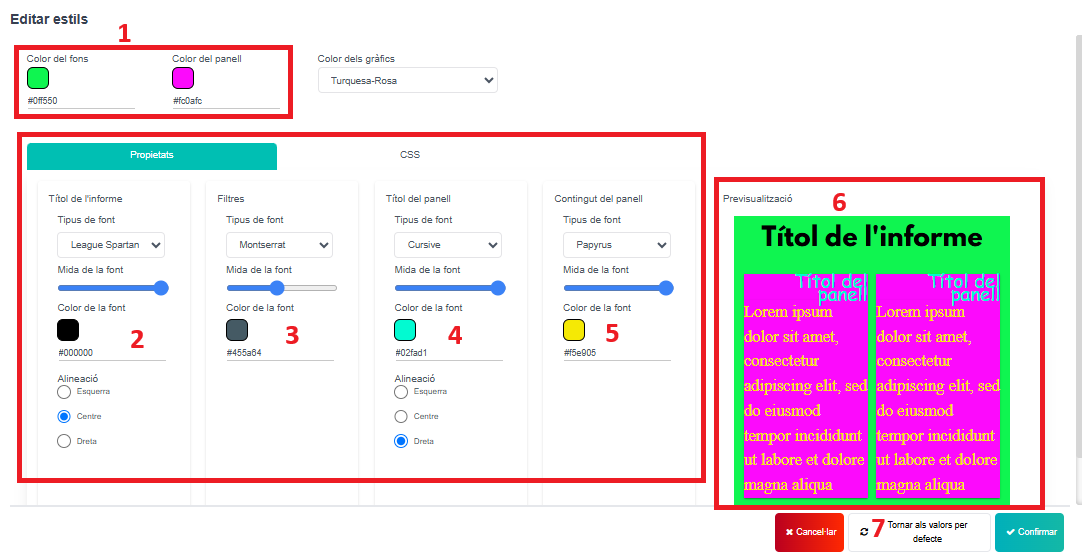
- To modify background color and panel color.
- To modify the report title (Color, size, font and position).
- To modify filters (Font, size and color), in case you have.
- To modify panel title (Color, size, font and position).
- To modify the panel content (Font, size and color).
- There is the preview of your dashboard style.
- It allows you to return to default values.
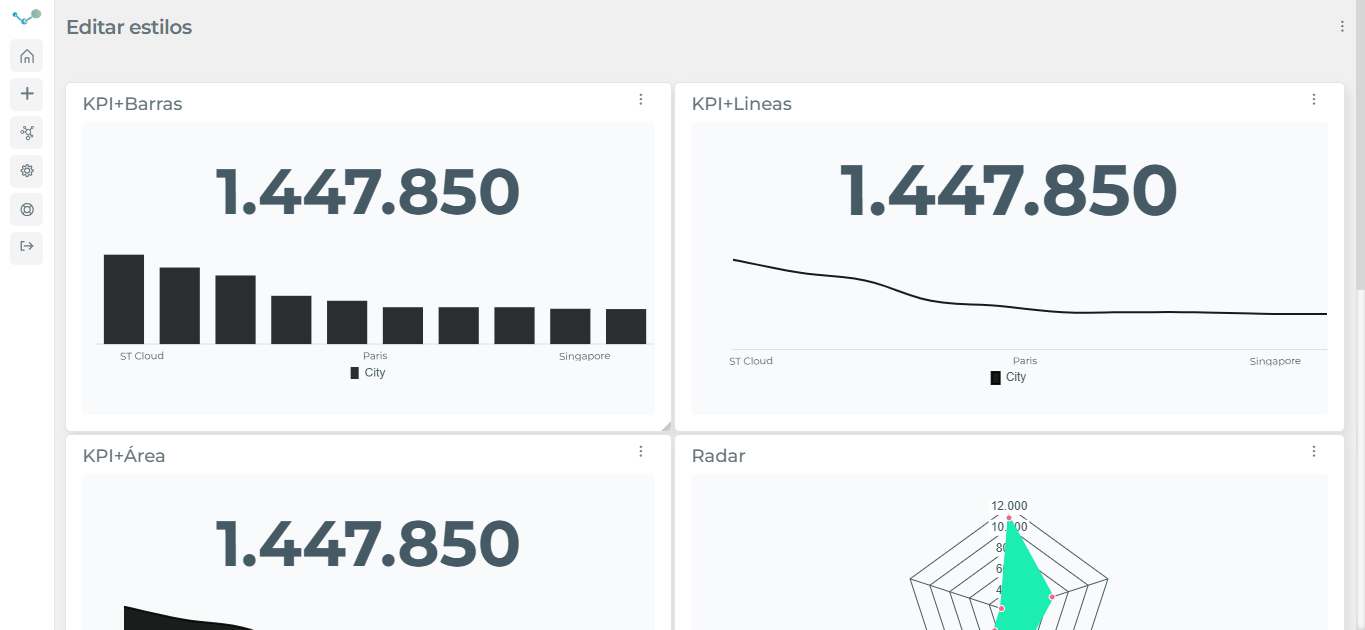
- Before editing style:
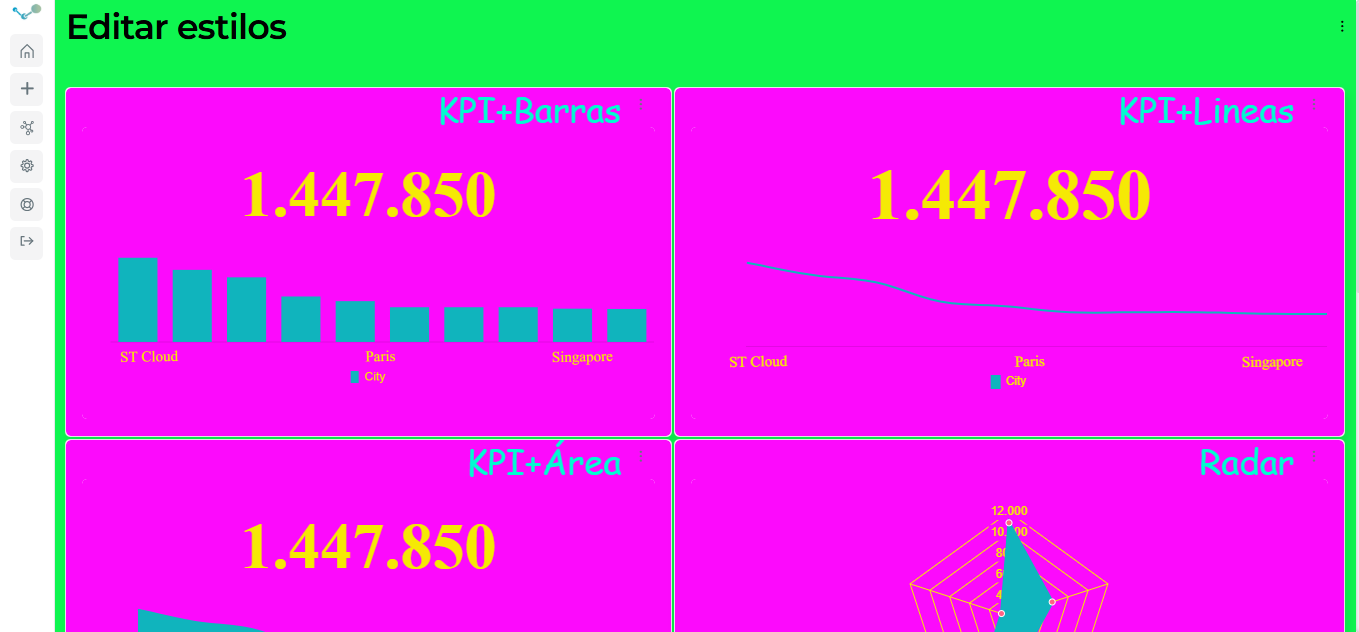
- After editing style:
Video tutorial
Section titled “Video tutorial”Background image
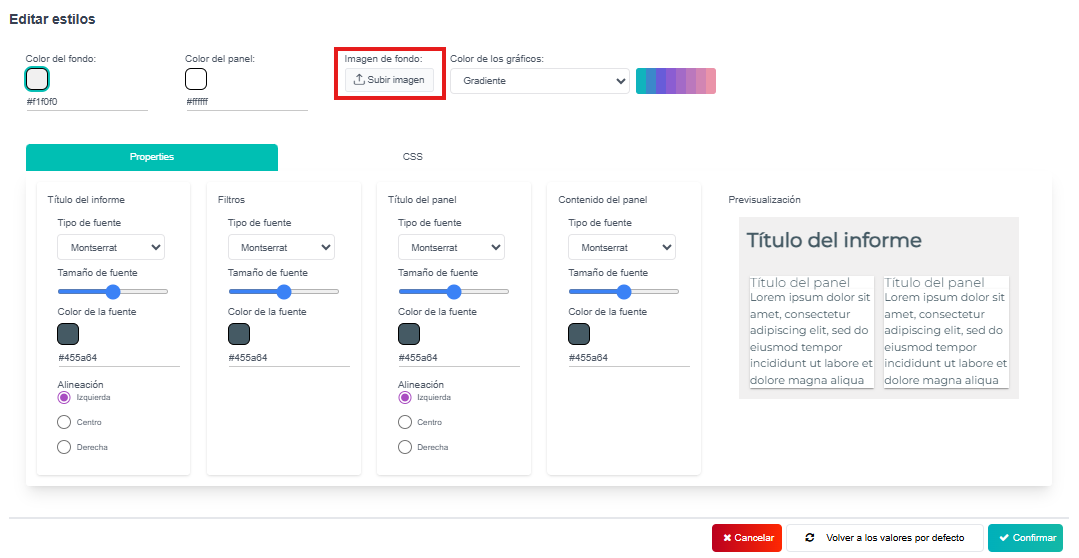
Section titled “Background image”At Edalitics, you can also customize report backgrounds to match your visual identity or user preferences.
To do this, simply access the “Upload Image” option and select the image you want to use as the report background.
Video tutorial
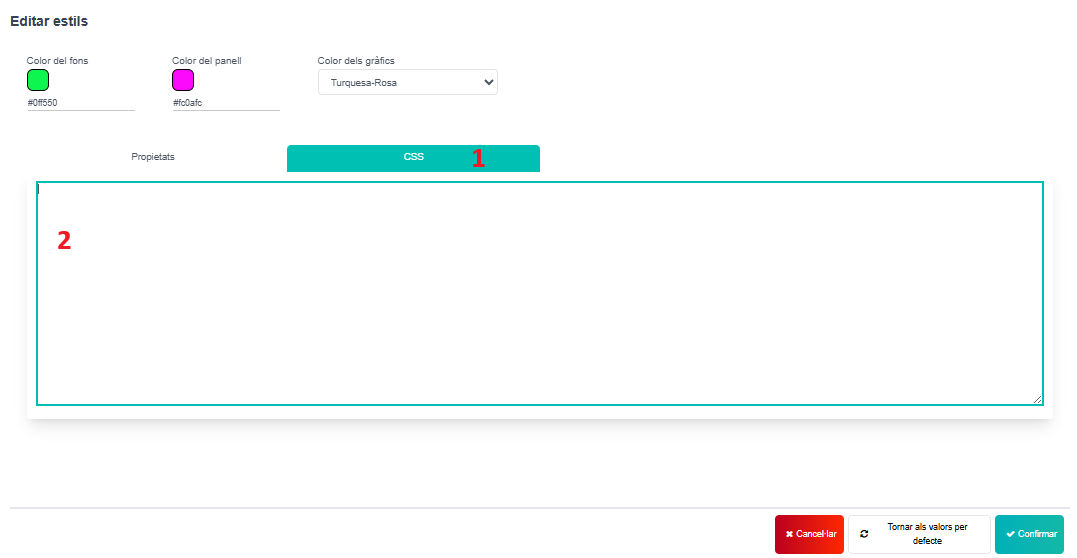
Section titled “Video tutorial”You can also add a CSS in “Edit styles”. Instead of being in “Properties”, go to “CSS” (1). Add your CSS in the text box (2) and your dashboard will be edited with your CSS