

Report filters
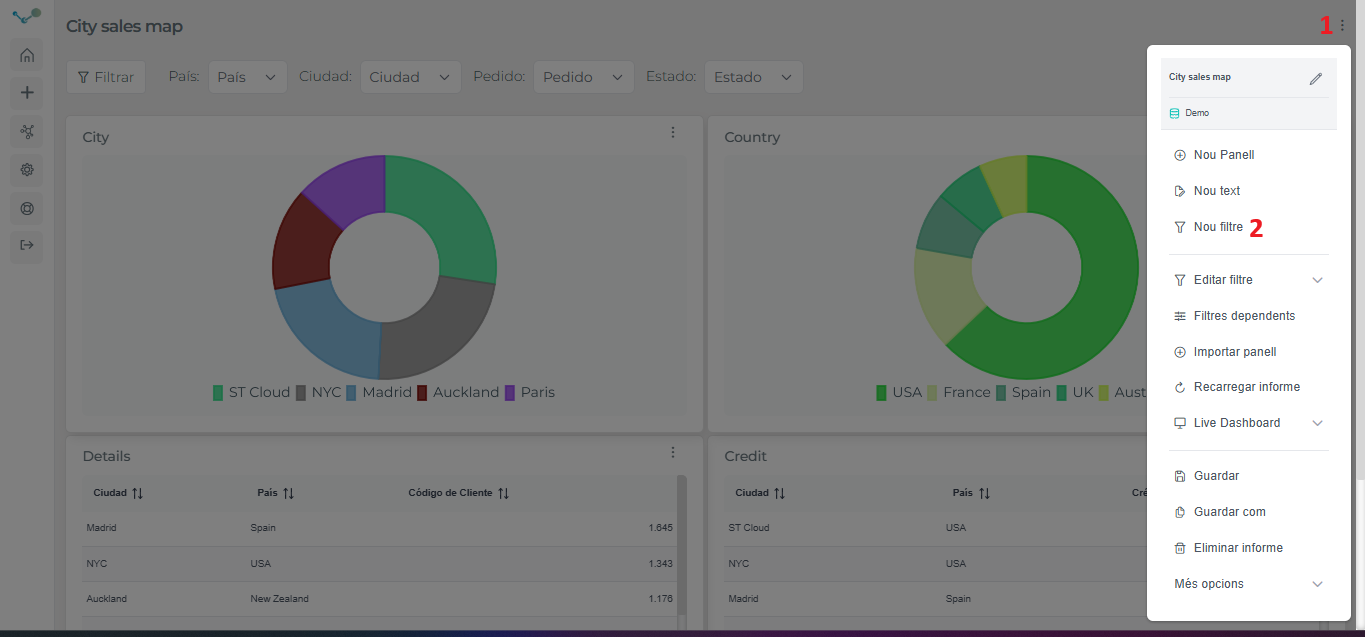
A report can have filters based on the data model on which the report is built. To add a new filter, click on the dropdown menu at the top right of the screen (1). After which, the menu of actions associated with the report will appear and where we can add a new filter (2).
After which the filter configuration screen will appear where:
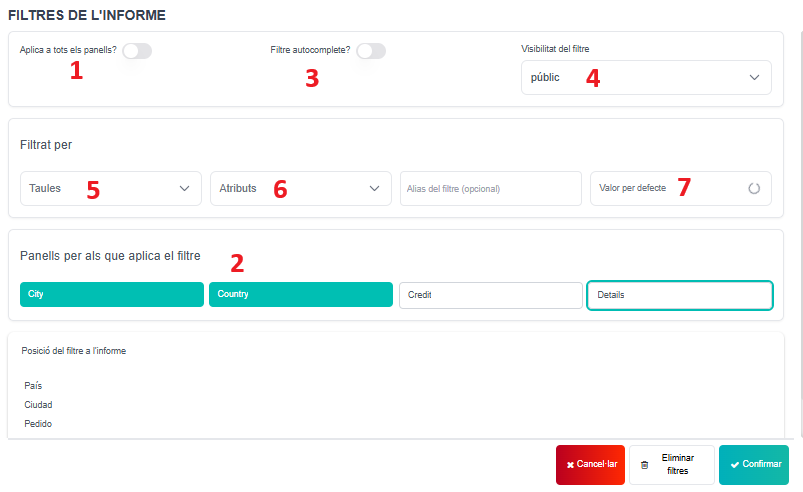
We can decide if the filter applies to “the entire report” (1) or only to some specific panels (2). Autocomplete filter (3) needs two characters to filter. Therefore, it will only show results that match those characters, making it faster. Moreover, we can choose the visibility of the filter (4). And we can choose which entity (5) and attribute (6) we want to filter on. We can also, if we want to set some default value (7).
In order to facilitate queries, because the report maintains integrity, it is recommended to define the filters last. Once we have defined all the panels. In case we have an unconfigured panel, we will not be able to define a new filter. We will need to configure all the report panels first and then the filters. The reason is, again, the integrity of the report.
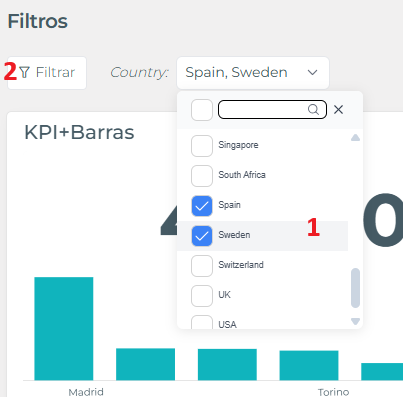
Since filters are multi-selectors by default, to apply a filter you will have to make the desired selection (1) and click on the “Filter” button (2)
Video tutorial
Section titled “Video tutorial”Edit/Delete filter
Section titled “Edit/Delete filter”You can easily edit or delete any filter you want. Open the menu in the upper right corner, click “Edit filter”, and select the filter you wish to edit or delete.
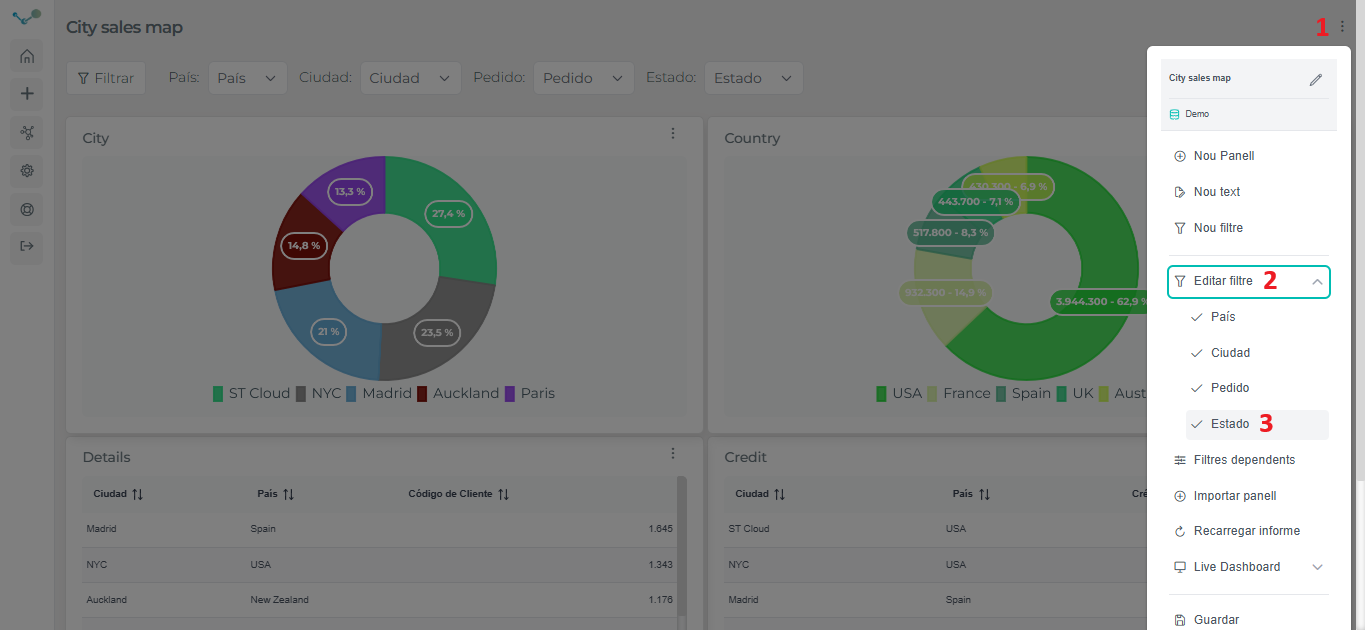
Once you have chosen the filter, you can edit it (1) or delete it (2) from the following screen:
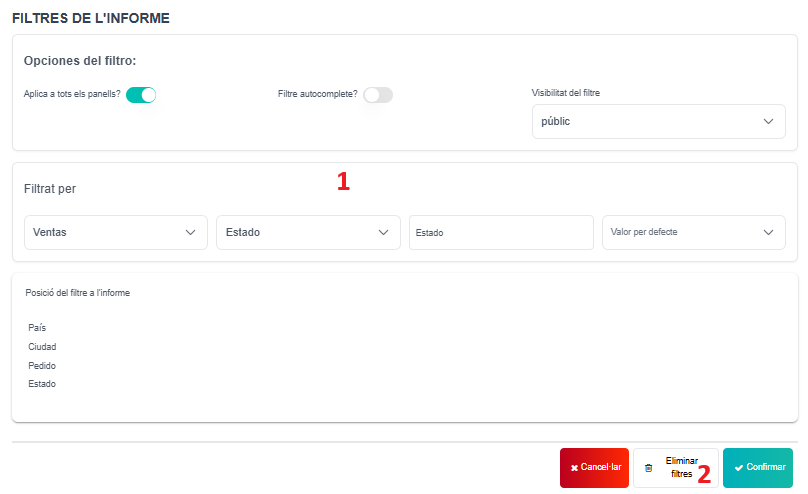
In the “Edit filter” section, you can change the order of the filters by drag it to the position you want it. This way, you can have your filters organized by panels, categories, according to your liking or needs.
Dependent filters
Section titled “Dependent filters”Now you can make one filter dependent on another. This allows you to find the value or values you want to filter by more quickly.
- First of all, you must have report filters:
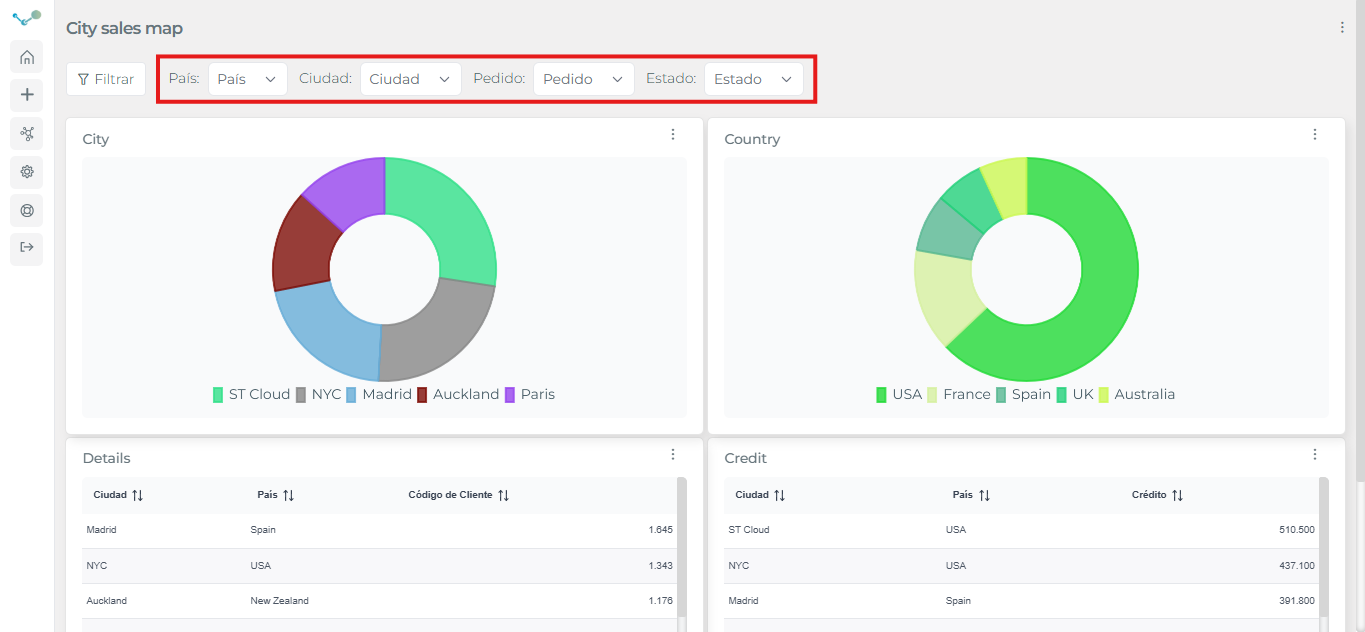
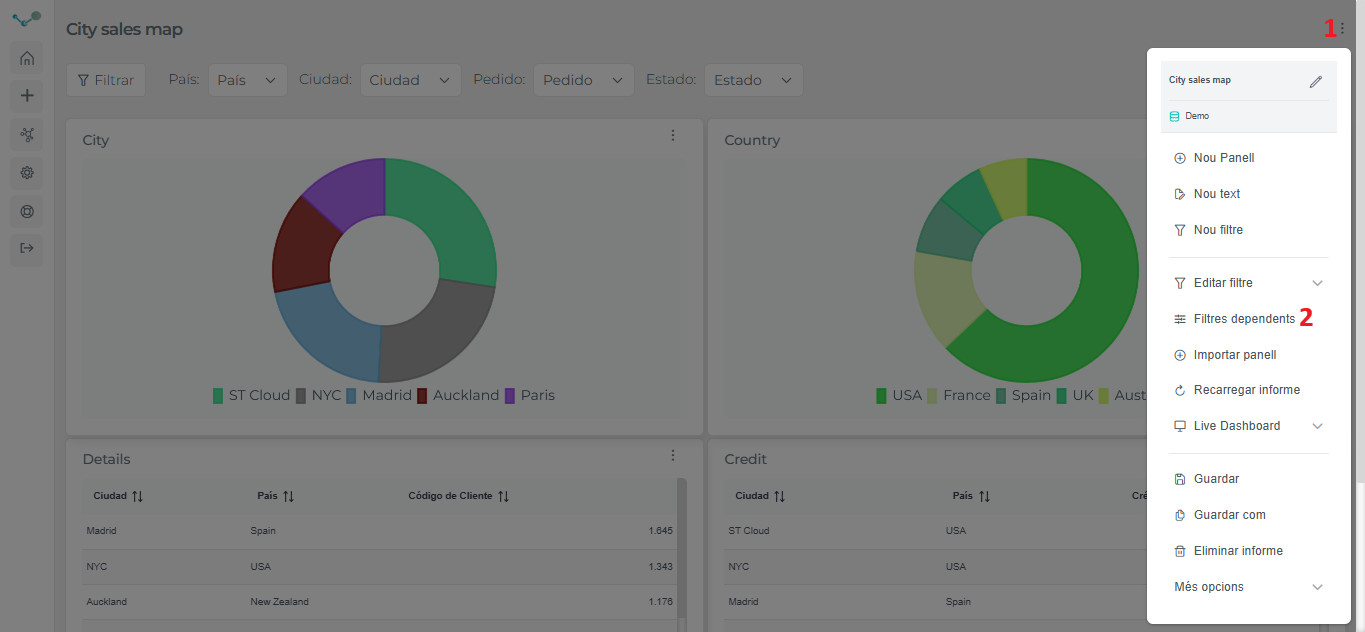
- After creating the report filters, they will be added to Dependent Filters section. To access this section, go to the menu (1), then to Dependent Filters (2):
- When you click on Dependent Filters, it will open a box with your report filters:
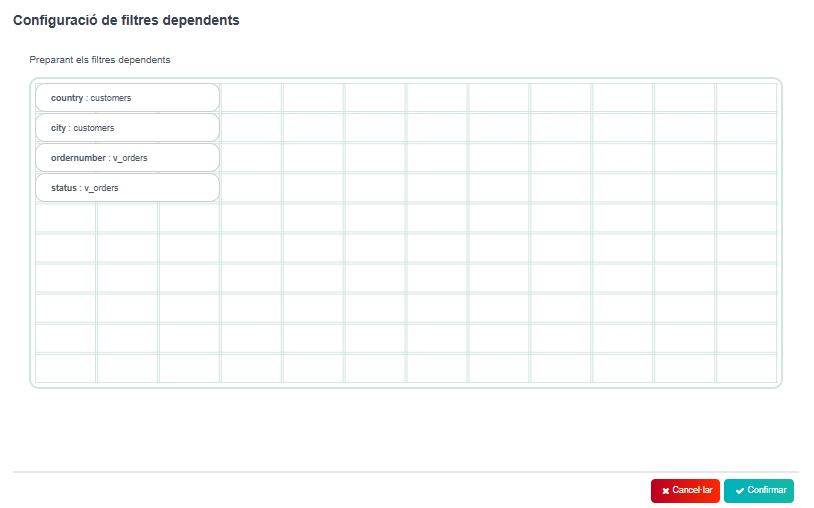
- In this box, you can configure which filter depends on another filter. To make one filter dependent on another, the filter has to be below the other one, and you must move the filter that will depend on the other one slot to the right. For example, I want the filter “city” to depend on the filter “country”, so I place “city” below “country”, and move it one space to the right.
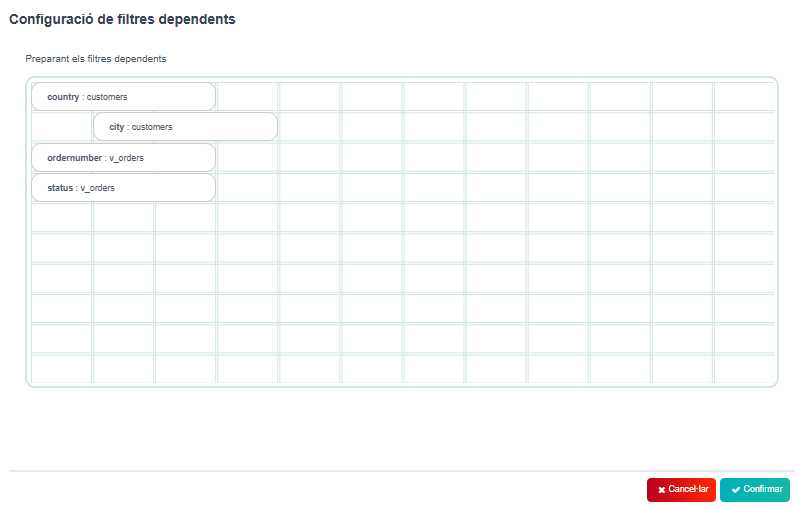
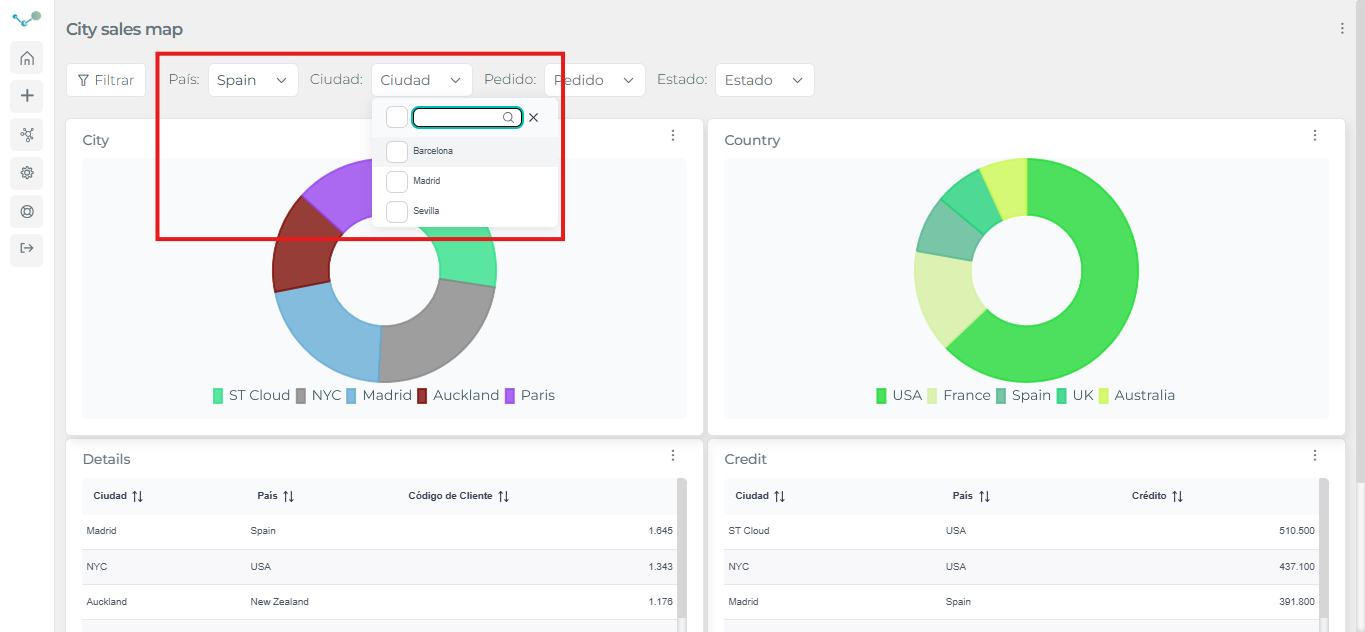
- Now, if I choose “Spain” in the “country” filter, the “city” filter will only show me cities in Spain to filter.
You can make another filter to be dependent of the filter “city”. This third filter will be below “city” and one space to the right, and will depend on the “city” and “country” filters, since “city” depends on “country”.
To make one filter independent of another, move it to the left.
When you remove a filter, the settings of the dependent filters will be reset.
Video tutorial
Section titled “Video tutorial”Column filters
Section titled “Column filters”It is also possible to filter from the panel:
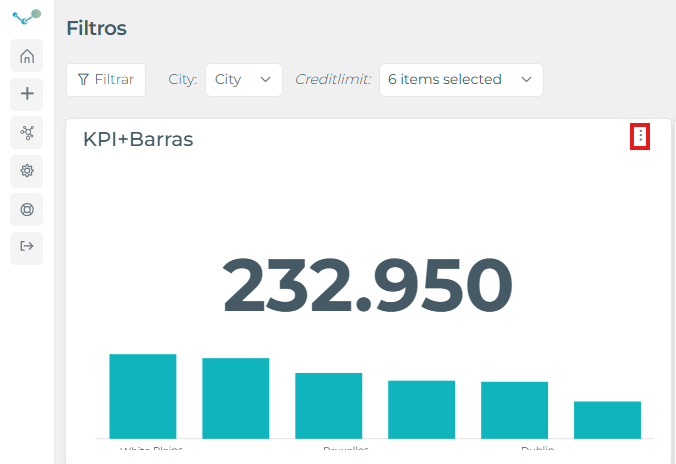
- Edit query, and then, drag and drop the attribute you want to filter by:
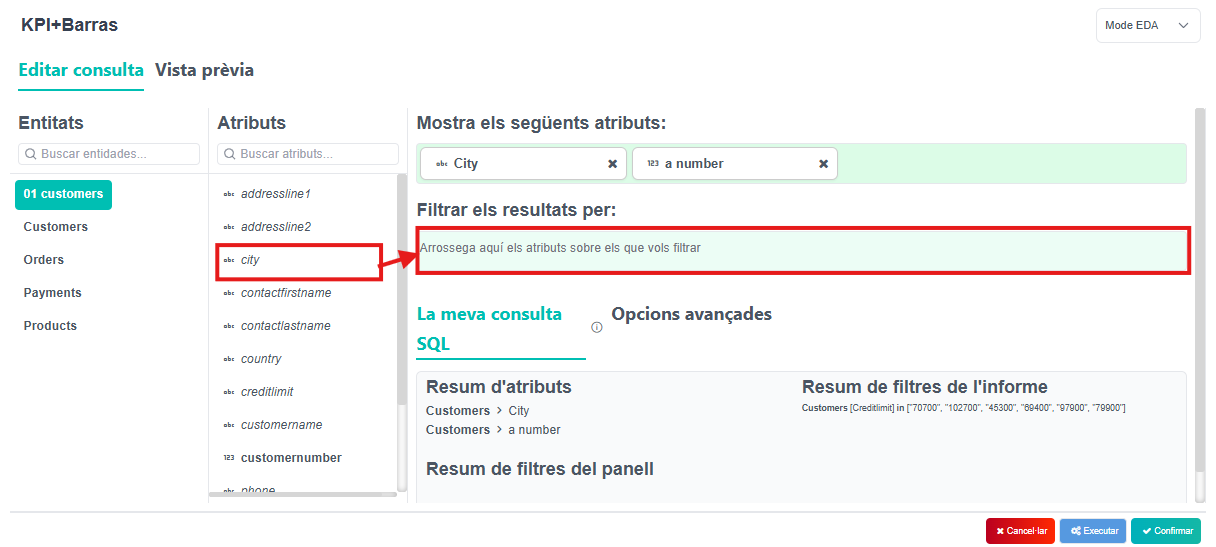
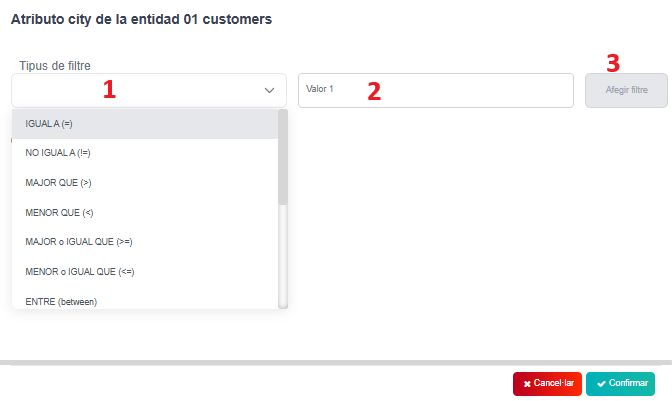
- Once you drop the attribute, it will open a box where you have to choose the filter type (1), the value to filter (2) and add filter (3):
Video tutorial
Section titled “Video tutorial”Attribute filters
Section titled “Attribute filters”You can also filter by the attributes you want to display.
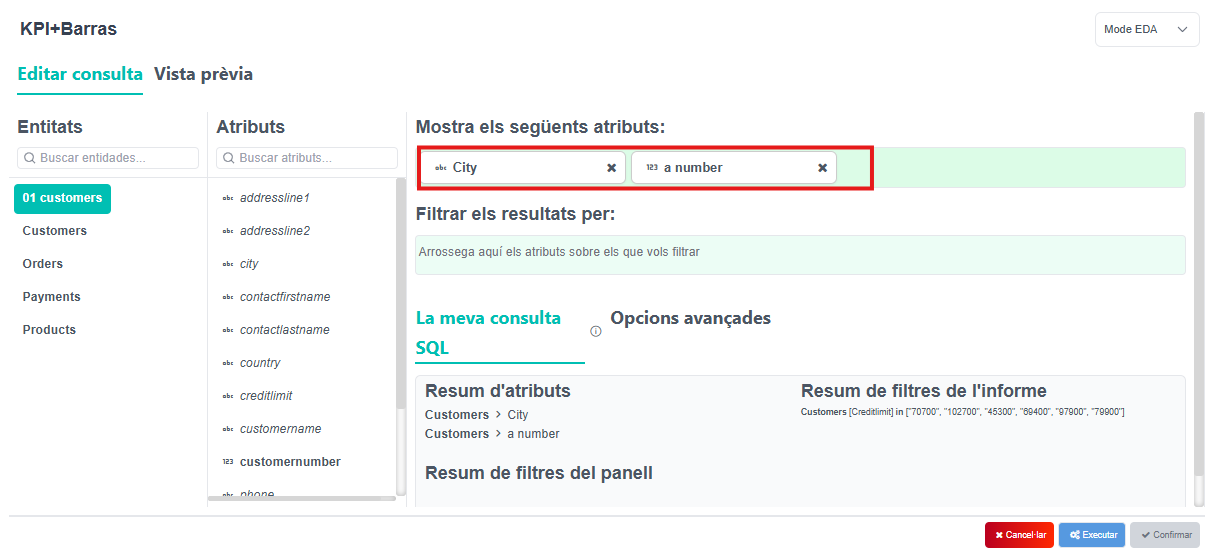
- Just choose one of your attributes:
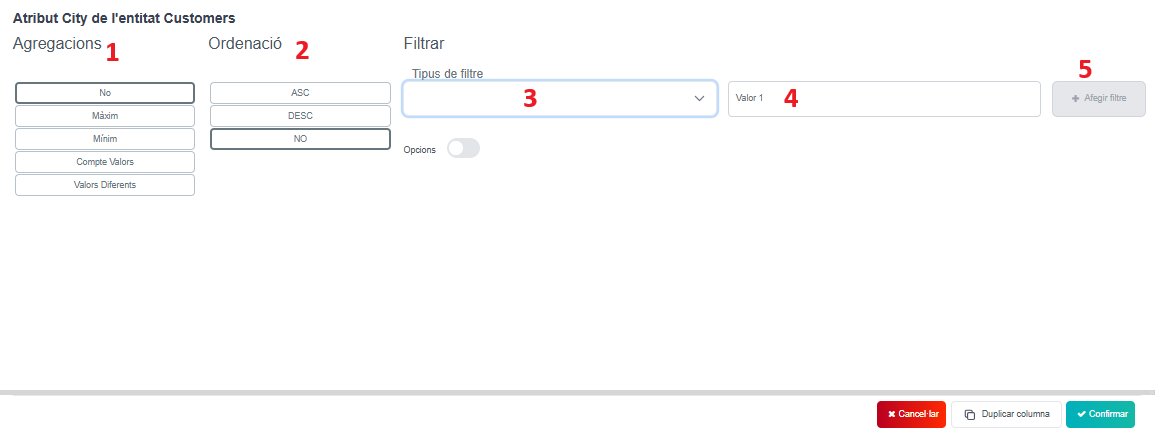
- In this box, you can choose the aggregation (1), the order (2), the filter type (3) and the value (4). After choosing them, add filter (5) and confirm.
Video tutorial
Section titled “Video tutorial”Dynamic filters
Section titled “Dynamic filters”You can activate this kind of filters:
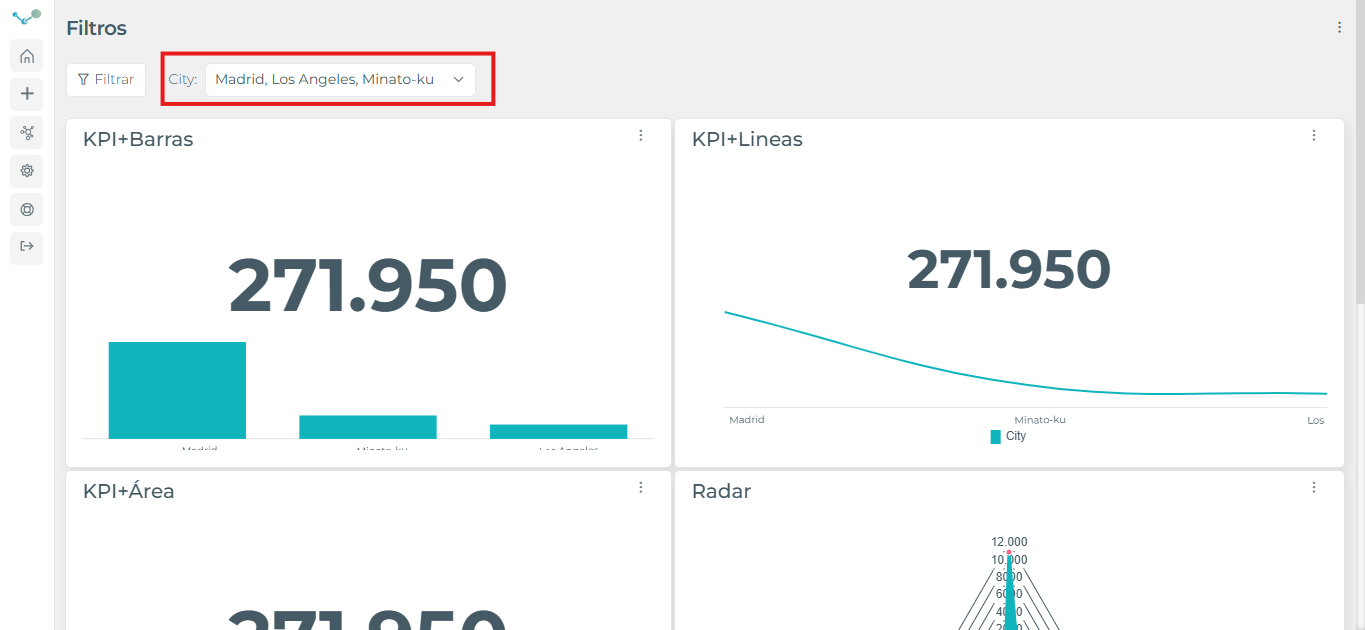
By clicking the value you want to filter by. For instance, if I want to filter by the city “Madrid”:
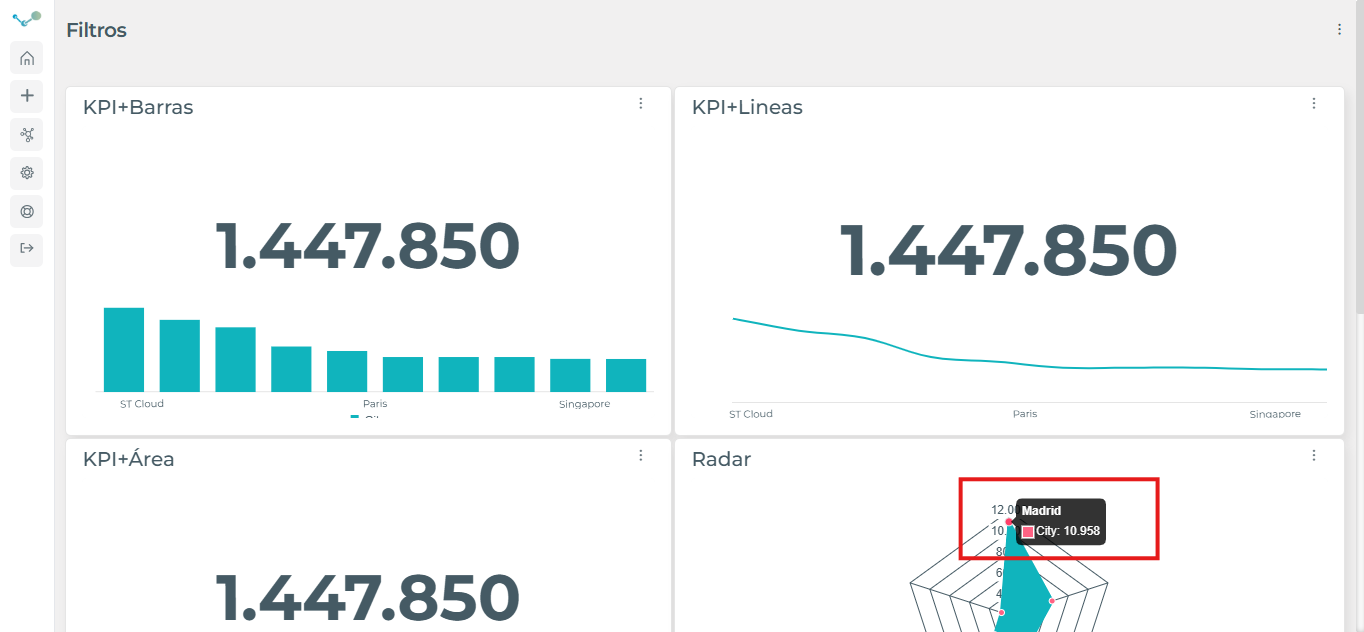
I click on “Madrid” in the panel where it has that value, and the filter will be displayed at the top:
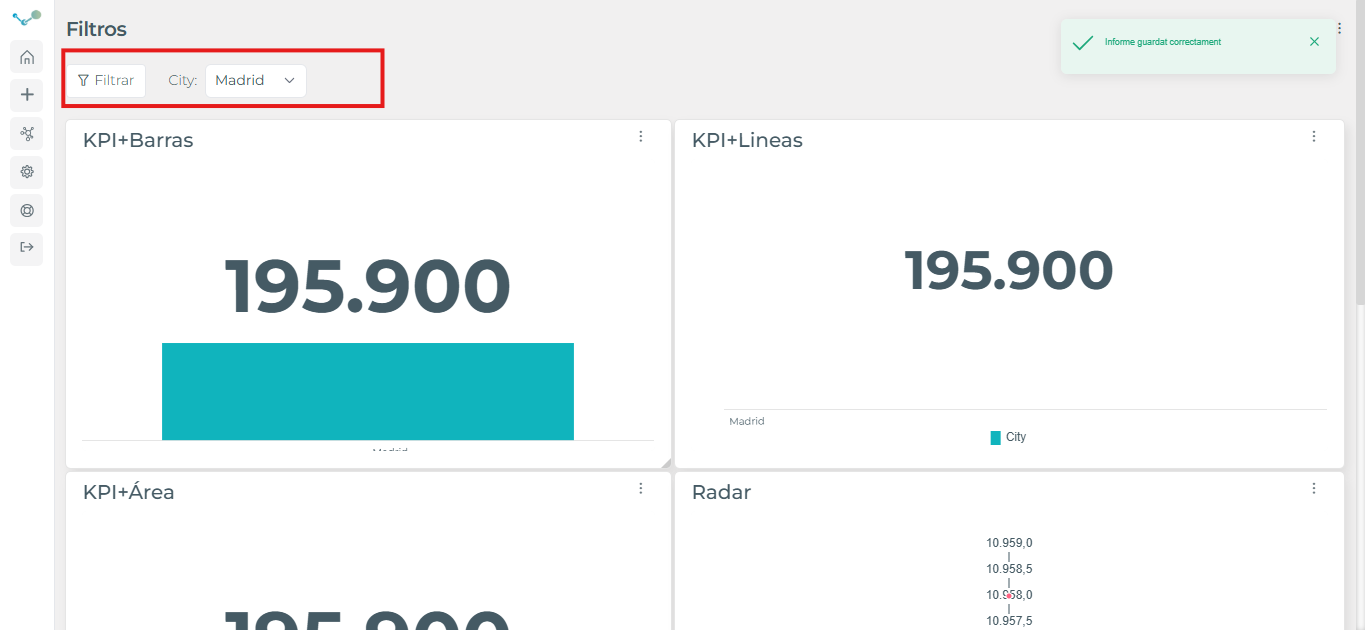
You can add/delete filters by expanding the filter, in this case, city.
If you want to delete the filter, you can just click again on “Madrid”. It will remove the filter.
Video tutorial
Section titled “Video tutorial”Advanced filters
Section titled “Advanced filters”Advanced filters allow for greater customization of data filtering within a report.
These are conditional filters that allow you to apply different filtering rules, combining conditions using AND or OR, which provides greater control over the displayed information.
Furthermore, filters can be configured as dependent filters, allowing one filter to update dynamically based on the value selected in another filter. For more information, see the Dependent Filters section.
⚠ Important: To access the Advanced Filter Settings panel, you must have previously created at least one filter in the report.
Accessing Advanced Filter Settings
- Go to the three dots in the panel.
- Select “Edit Query”.
- Access the Advanced Options window.
- Click the “Configure” button within Advanced Filters (AND/OR).
Doing so will open the Advanced Filter Settings section, from where you can define the filtering conditions according to your needs.
⚠ Important: Each panel may have a different configuration.