
Ask the AI
Edalitics has implemented artificial intelligence (AI) in the dashboards panels. We have named it Edalitics, so for any information about the panel, you can ask Edalitics.
Follow these steps to ask Edalitics:
-
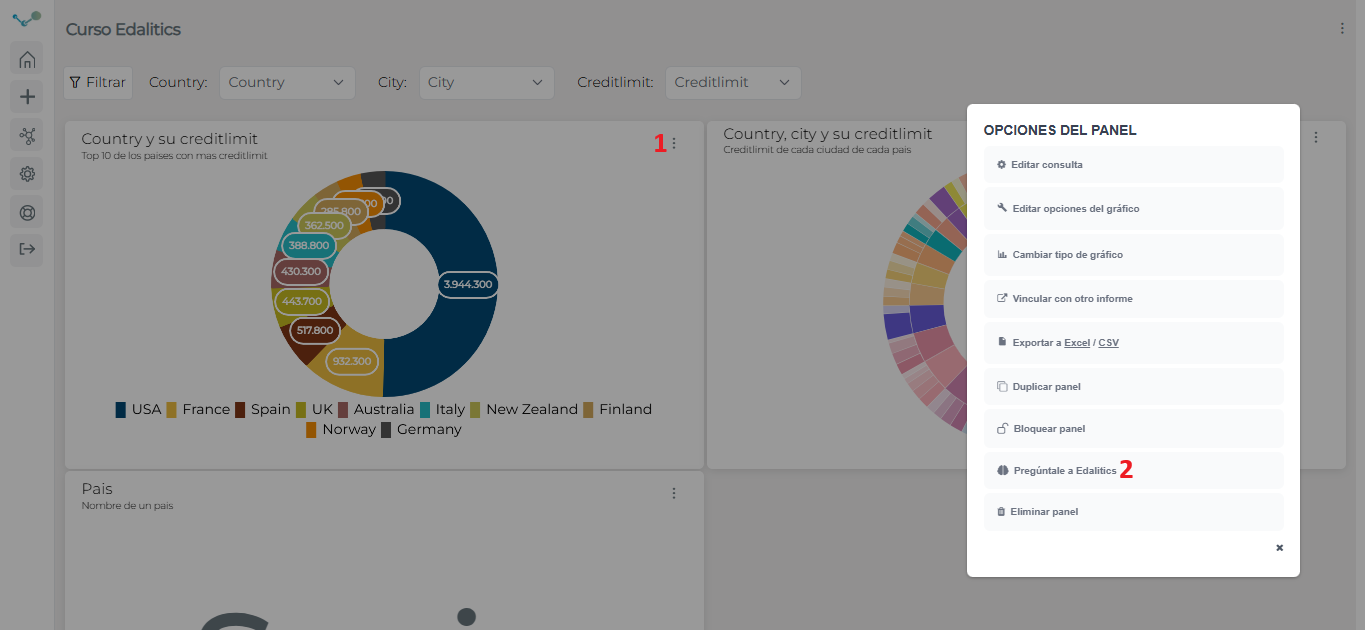
First of all, open panel options (1), and click on “Ask to Edalitics” (2):
-
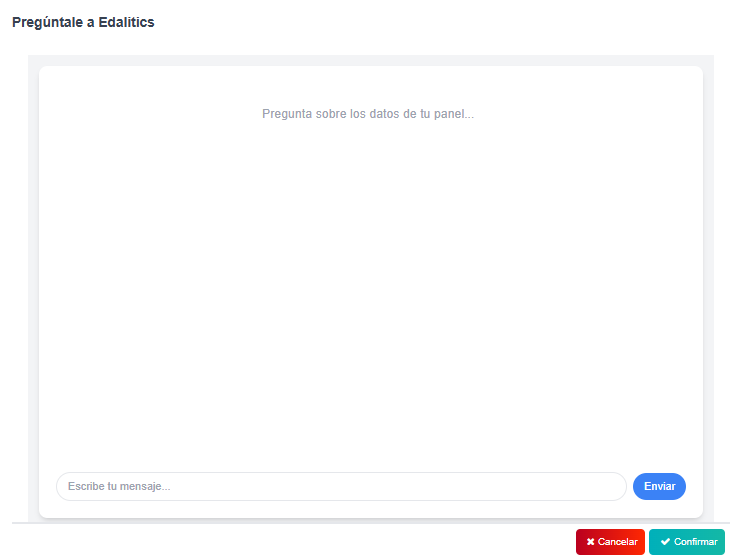
Secondly, after clicking on “Ask to Edalitics”, it will open your chat with Edalitics. Now you can ask him whatever you want about the panel. Write you question or request in the text box and send it, Edalitics will give you the best answer.
-
When you are done of asking, click on “Confirm” and it will close the chat.
IMPORTANT! Edalitics only responds correctly to questions about the panel from which you opened the chat. So if you want information about another panel, you must open Edalitics’s chat from within that panel.
Video tutorial
Section titled “Video tutorial”Natural Language Query
Section titled “Natural Language Query”At Edalitics, you can create dashboards using natural language queries, thanks to an AI-powered assistant.
This system allows you to generate queries intuitively, simply by describing what you need in your own words. The AI interprets the request and builds the corresponding query, adapting it to the user’s intent to obtain the desired results without requiring any technical knowledge.
Video tutorial
Section titled “Video tutorial”Edalitics Assistant
Section titled “Edalitics Assistant”The Edalitics Assistant is an AI-powered tool designed to simplify daily tasks within the platform. The assistant is located on the home screen, in the bottom right corner. Clicking on its icon will open the chat, where you can ask your questions.
The Edalitics assistant offers the following functionalities:
📊Access Data
- Search for information in existing dashboards.
- Answer questions about metrics, sales, customers, products, and other indicators.
- Filter and sort data (for example, show the Top 10, highest values, or lowest values).
- Obtain detailed lists of records without aggregation.
📈Explore Dashboards
- View the dashboards available on the platform.
- See who created each dashboard and the date of its last update.
- Learn about the information and data contained in each dashboard.
🗄️Access Data Sources
- View the available data sources.
- Explore the table and column structure of each data source.
- Perform direct queries on the data sources.
✨Create Dashboards with AI
- Generate new dashboards from a natural language description.
- Automatically create visualizations tailored to the user’s needs.
- For more information on this feature, see the creating a report section.
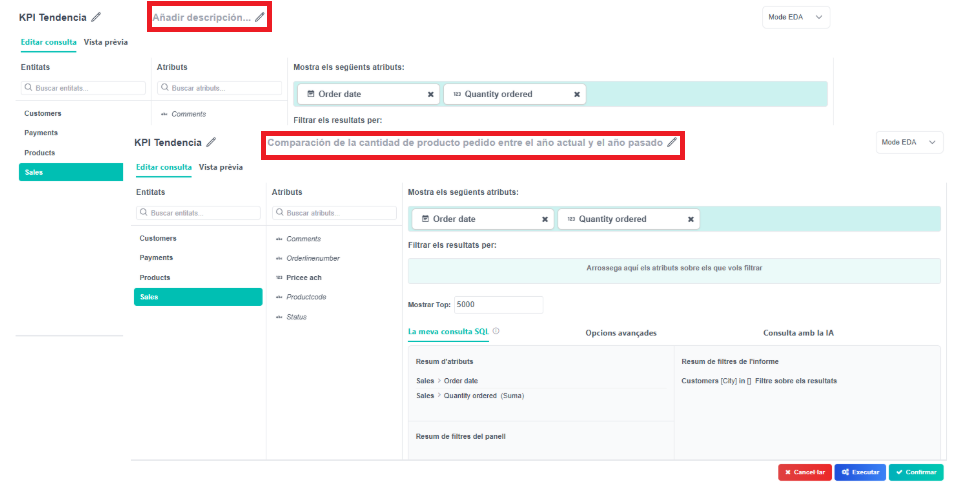
For more accurate answers, it’s recommended to add a description to each panel. This gives the assistant more context about the data and allows it to provide more specific and relevant information for each query.